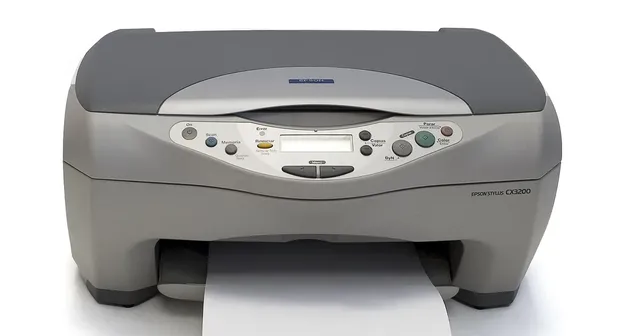
Here is how to print a calendar so it comes out the right size: make it in the paper size you’ll print on, download the PDF, and print at “Actual size” or 100%, not “Fit to page”. Those three choices keep every box, line and margin exactly as designed, with nothing cut off or shrunk.
How to print a calendar step by step
Step 1: Make the calendar in your paper size.
Choose Letter (8.5 × 11 in) in the US and Canada, or A4 (210 × 297 mm) almost everywhere else. The calendar maker starts with the usual size for the country you choose, but always check it against the paper in your printer. Printing an A4 calendar on Letter paper is the most common reason the bottom row goes missing; A4 vs Letter size explains why.
Step 2: Choose the layout.
- Months per page: 1, 2, 4 or 12. One month per page gives the most writing room; 12 gives the whole year on a single sheet.
- Orientation: landscape gives each day a wider box; portrait suits year views and binders.
- Week start: Sunday or Monday, whichever you’re used to.
- Extras: holidays for the US, UK, Canada, Australia or India, your own events, and ISO week numbers if you plan by week.
The preview shows exactly what will print.
Step 3: Download the PDF.
The PDF is made on your device in a few seconds. Open it in a PDF viewer or your browser’s built-in viewer.
Step 4: Set the print dialog.
This is where most printing problems start, so check each setting:
- Printer and paper size: the same size you chose in step 1.
- Scale: “Actual size” or 100%. Avoid “Fit to page”, “Fit to printable area” and “Shrink oversized pages”, which make everything smaller.
- Orientation: usually “Auto”, which follows the PDF. If your printer turns a landscape page sideways and shrinks it, set landscape here as well.
- Borderless: off. Borderless printing enlarges the page slightly and trims the edges.
- Pages: all of them, or a range such as 1 to 3 for the first quarter.
The PDF asks the print dialog for actual size on its own, but some browsers and printers override it, so a quick check is worth it.
Step 5: Print one page first.
Print the first page and look at it before printing the rest. All four borders should be visible, with an even white margin around the edge. If something is cut off, printer cutting off edges lists the causes and fixes.
Why actual size matters for a calendar
Every page from this site keeps a 0.5 in (12.7 mm) margin on all sides. Home printers can’t print the outer few millimetres of a sheet, and that margin keeps every line clear of that strip. At actual size, the margin does its job and the whole calendar prints.
“Fit to page” works against it. It shrinks the page to fit the printer’s idea of the printable area, so the margins grow, the day boxes get smaller, and the calendar no longer lines up with a frame, clipboard or binder made for the real size.
Printing a monthly calendar vs a yearly one
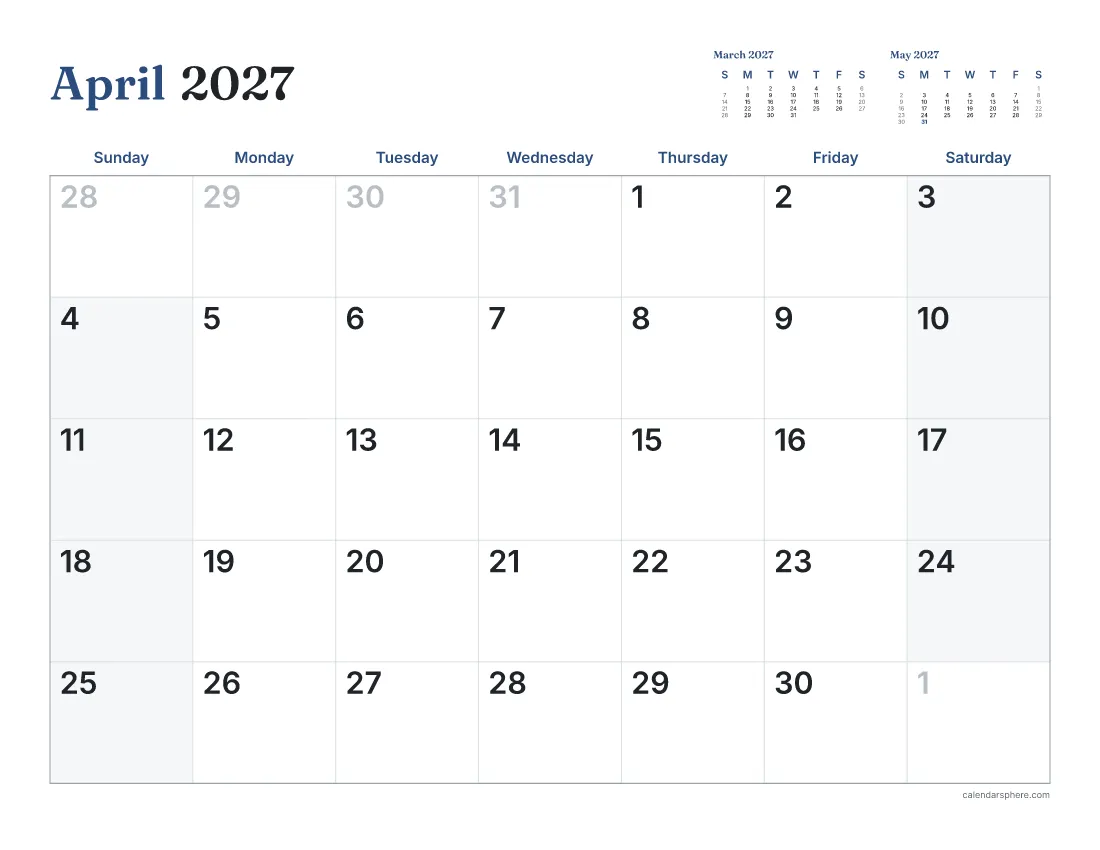
A single month. Pick the month, landscape, one month per page, and you get the most room per day. The January 2027 calendar is a good place to start a new year; every month of 2027 has its own page.
A whole year of months. Choose the year with one month per page and you get a 12-page PDF, ready to staple or bind. Print a single month at a time if you prefer to pin up the current one only.
A year on one page. Twelve months per page in portrait makes a planning overview for a desk, fridge or noticeboard.
Paper and finishing tips
- Paper weight. Ordinary copier paper is fine for a desk or binder. For a wall calendar, heavier paper or light card lasts longer and takes pen without showing through, if your printer can feed it.
- Double-sided printing. A month per page printed double-sided halves the paper but makes a wall calendar harder to hang. Print single-sided for the wall.
- Binding. Two holes at the top and a binder ring, a bulldog clip, or a staple at each top corner all work for a hanging calendar.
- Ink. Light styles with less solid colour use less ink. Print a test page in the style you like before printing twelve.
Print a calendar for the whole family
A printed calendar on the wall works best when everyone writes on it. Family calendar ideas has suggestions for colours, columns and where to hang it so it gets used.

Make and print your calendar
The calendar maker builds a calendar for any month or the whole year, on Letter or A4, in portrait or landscape, with holidays and your own events. Choose your paper size, download the PDF, print at actual size, and it comes out exactly as the preview shows.
Frequently asked questions
How do I print a calendar without it shrinking?
Set the scale in the print dialog to “Actual size” or 100%, not “Fit to page”, and make sure the paper size there matches the calendar’s paper size.
Should I print a calendar in portrait or landscape?
Landscape gives each day a wider box and suits a single month on a wall. Portrait suits a whole year on one page or a calendar in a binder.
How many months can I fit on one page?
The calendar maker prints 1, 2, 4 or 12 months per page. One month per page leaves the most room to write; twelve gives a year at a glance.
What paper is best for printing a wall calendar?
Heavier paper or light card holds up better on a wall and takes pen without showing through. Check what weight your printer can feed before you buy it.
Why does my printed calendar have the bottom row cut off?
Usually the calendar was made in A4 and printed on Letter paper, or the scale is above 100%. Remake it in your paper size and print at actual size.
Can I print a calendar with holidays and my own events?
Yes. The calendar maker adds holidays for the US, UK, Canada, Australia or India, and lets you add your own events before you download the PDF.